


Manage courts
Create a new court
Add and configure your club's courts for each season
Before creating your courts, make sure you have first created a season. Courts are always linked to a specific season, and the number of courts can vary depending on the season (summer vs. winter). Select the corresponding season when creating your courts.
Go to the court management module
In the main menu, click SPORT, then select the option Manage courts. This takes you to the list of all your courts. Don't forget to select the date of the relevant season before you start.
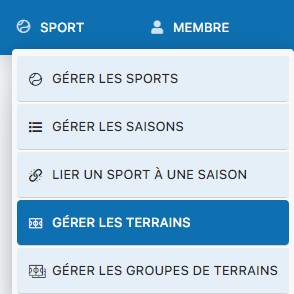
Access to the SPORT menu and the Manage courts option
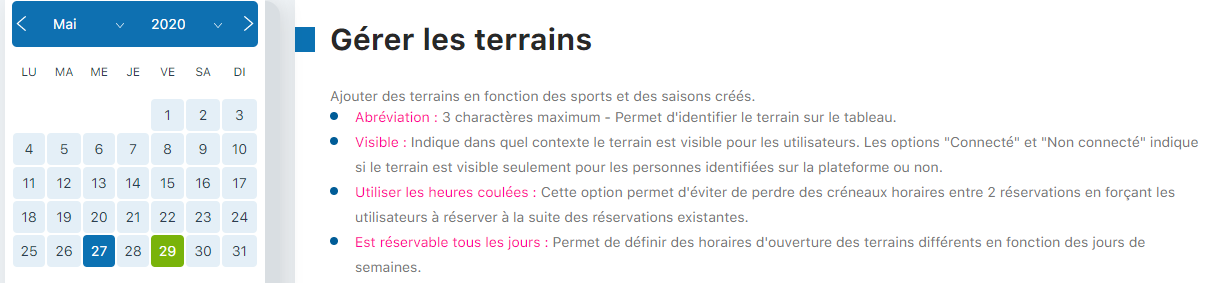
Court management interface
Fill in the creation form
Complete the form with your court's essential information. Here are the fields to fill in:
| Field | Description |
|---|---|
| Name | Full name of the court (e.g., Court 1, Center Court) |
| Abbreviation | 3-character abbreviation shown on the booking board (e.g., T01) |
| Image | Optional image of the court for easier identification |
| Opening time | Default opening time for the court |
| Closing time | Default closing time for the court |
| Visible | Show or hide the court in the booking system |
| Kiosk only | Restrict the court to bookings made via the kiosk only |
| Use continuous hours | Force continuous bookings with no gaps between slots |
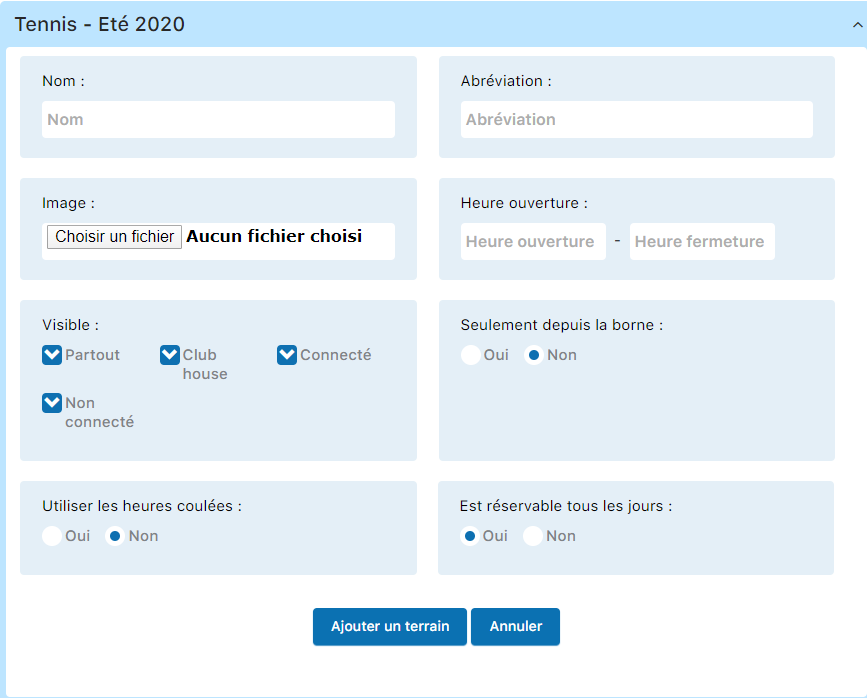
Form for entering the court's details
Configure the court's availability
An example of a completed court is shown below. If your court cannot be booked every day, you need to set this restriction:

Example of a court with all settings filled in
Set the option Can be booked every day to NO if the court is not available every day:
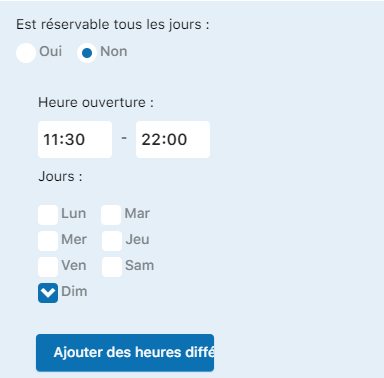
Court availability settings
You can then add custom time slots by clicking Add different hours to set specific hours by day or by period.
Confirm the court creation
Once all the settings are configured, click the button Add a court to confirm the creation. Your new court will be immediately available in your booking system.
Warning: If the court display doesn't match what you expect after creation, try clearing your browser cache. Changes may take a moment to display correctly.
Plugin.ch Tutorial — Manage courts