


Manage member subscriptions
Refresh and assign subscriptions to your members
Manage members
Access subscription management
Click the menu MEMBER in the main menu, then select Manage memberships. The subscription management interface is displayed with all your members and their current subscriptions.
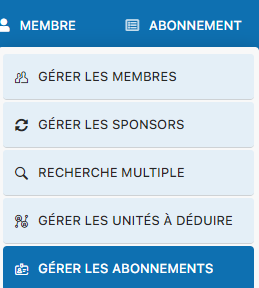
MEMBER menu → Manage subscriptions
Refresh subscriptions by age
Click the Update to automatically refresh all subscriptions based on members' ages. For example, members moving from the "Junior" category to "Student" will be updated automatically. We recommend performing this update before generating invoices.

Click "Update" to refresh by age
View the subscription summary
A general subscription summary is displayed with the total number of paying members, non-paying members, and the overall total. This overview helps you track the status of your club's subscriptions.
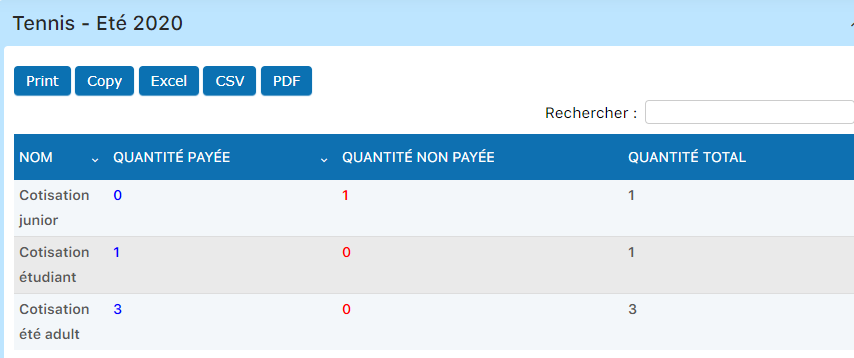
Overall subscription summary (paid/unpaid/total)
Assign a subscription to a member
To change a specific member's subscription, click the arrow in the column SUBSCRIPTION on the member's row. A drop-down list displays all available subscriptions. Select the desired new subscription.
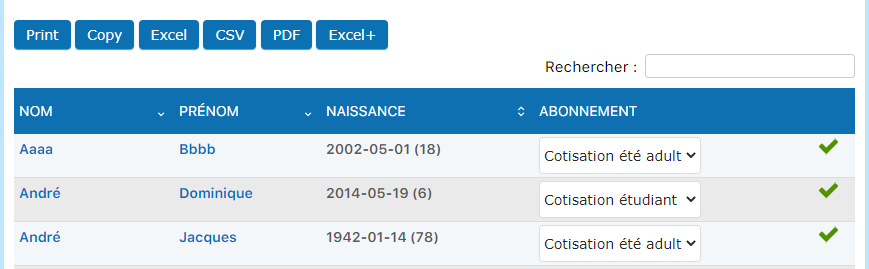
Click the arrow to open the subscription selector

Select the new subscription
💡 Helpful tips
Before invoicing: Make sure to update all subscriptions by age before generating your invoices. This ensures that each member has the appropriate subscription for their age category.
Subscription changes: Subscription changes take effect immediately and will be invoiced at the next billing.
Plugin.ch Manual | Chapter 8: Manage members