


Manage payment reminders
Manage invoices
Reminders are essential for recovering unpaid amounts. Plugin.ch automates this process: create reminders based on the payment deadline, print or send them by email, and manage reminder fees. This tutorial guides you through each step.
Configure reminder deadlines
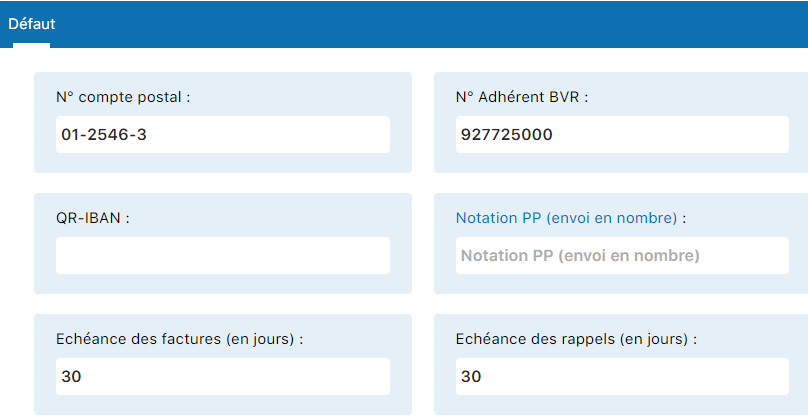
Before creating reminders, define when they should be generated automatically. This is a global setting that applies to all your groups.
Access invoicing settings
Go to SETTINGS / MANAGE INVOICING.
Create reminders for a group
Once configured, you create reminders group by group according to the criteria you have defined.
Access invoice management
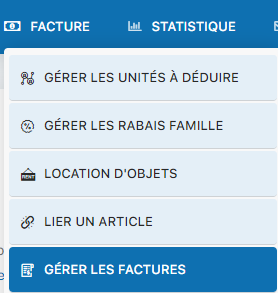
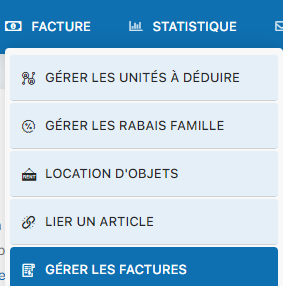
Go to INVOICE / MANAGE INVOICES.

Select the group
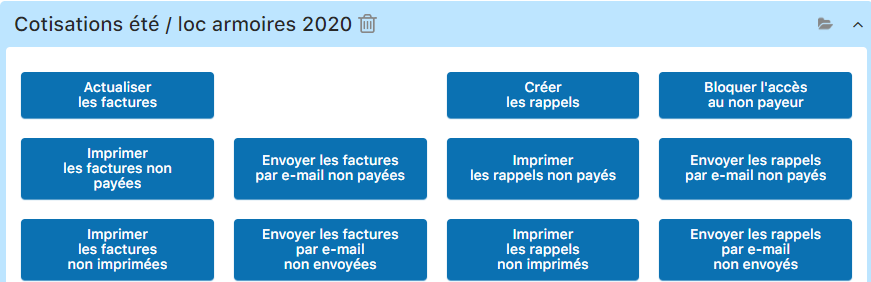
Click "Create reminders"
This action generates reminders according to your settings. The system automatically detects eligible invoices and creates the corresponding reminders (1st, 2nd, 3rd...).
View and edit reminders
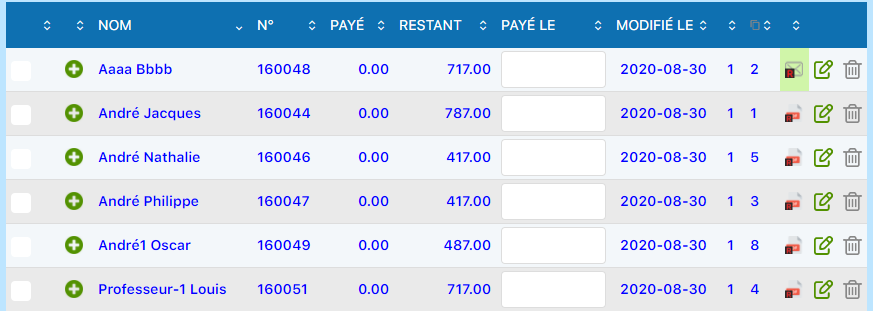
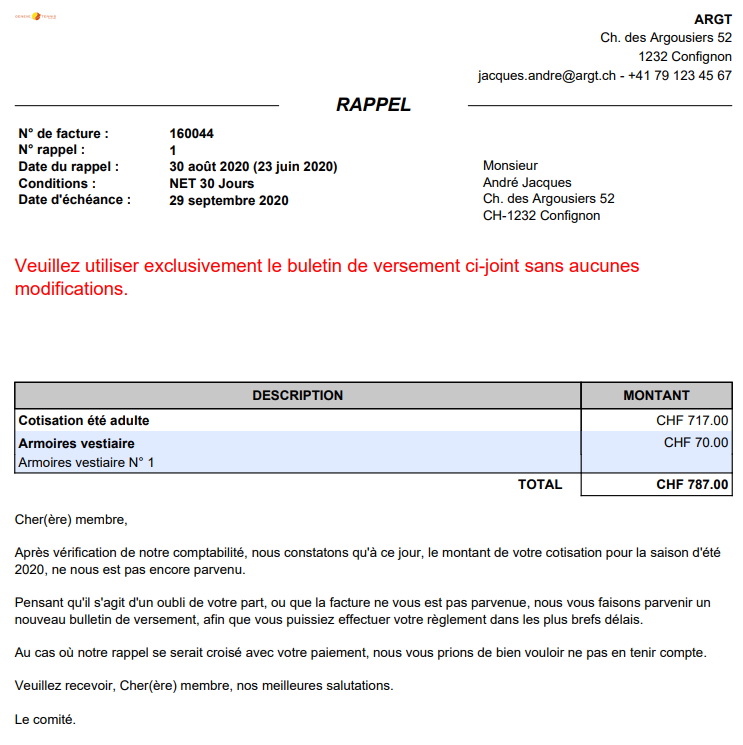
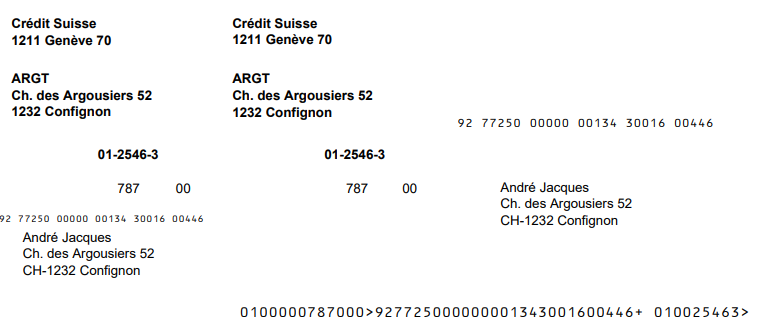
Created reminders appear in your invoice list. You can view them, edit them, and add fees if needed.
View a reminder in the list
Reminders are displayed with a different type (1 or 2 in column 9). Click the status icon to see the reminder details.
Add reminder fees
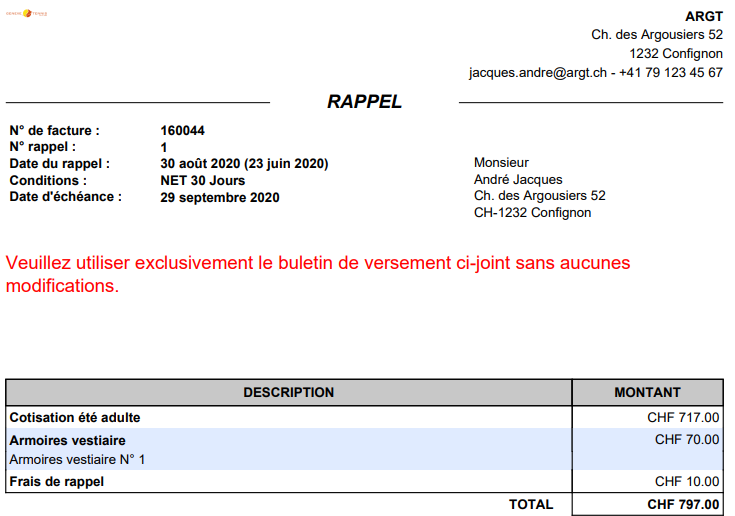
Click the pencil icon to edit the reminder. You can add a "Reminder fee" item to charge the client additional fees.



Refresh after editing
Don't forget to refresh the page so the changes display correctly.

Print unpaid reminders
You have created reminders and want to print them to send by mail. Here's how:
Access invoice management
Select the group
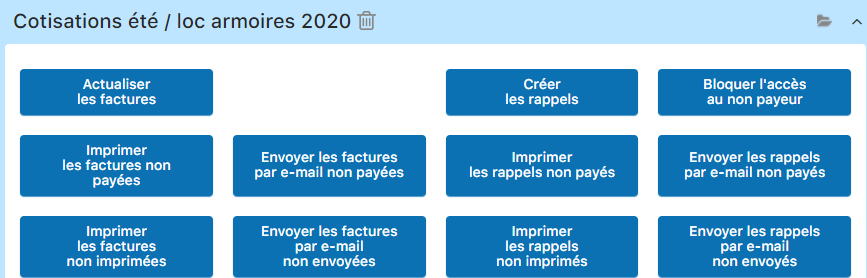
Click "Print unpaid reminders"
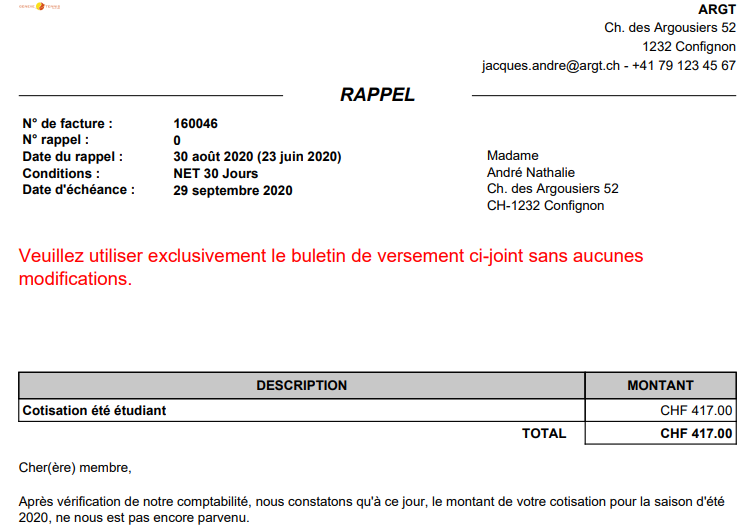
A PDF is generated with all unpaid reminders. You can print it directly or download it for archiving.

View the generated PDF
Send reminders by email
If you have created reminders in email format, you can send them directly from Plugin.ch. It's faster than printing and eco-friendly!
Same procedure as for invoices
Go to INVOICE / MANAGE INVOICES: select the group, and click "Send unpaid reminders by email".

Combine several channels: 1st reminder by email (fast), 2nd reminder by mail (more official), 3rd reminder with fees (payment incentive). This progressive approach significantly improves the collection rate.
Plugin.ch Tutorial — Manage invoices