


Manage restrictions
Set court access rules based on subscription types
Restrictions let you create complex rules limiting court access based on subscription type, time slots, days, or other criteria. For example, you can prevent juniors from booking during office hours, or limit the number of simultaneous bookings for certain groups.
1 Go to the restrictions menu
From the dashboard, go to SUBSCRIPTION → Manage restrictions. You will see the list of all currently configured restrictions.
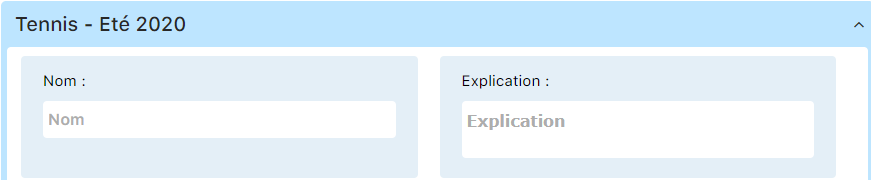
You can view all existing restrictions and their settings:

2 Example 1: Restriction for Juniors
Here is a concrete example of creating a restriction limiting access for juniors. We will look at each field in the form:
Restriction name

Give your restriction a clear name (e.g., “Juniors - Office hours restriction”)
Explanation
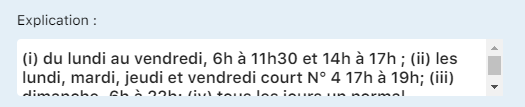
Describe the rule in plain language for users (e.g., “Juniors cannot book during office hours”)
Number of bookings allowed

Limits the number of simultaneous bookings during the active period (e.g., 1, 2, etc.)
Applies to all subscription types

Check this option if the restriction applies universally, otherwise select the specific types
For the current week

Determines whether the restriction applies only to the current week or on a permanent basis
Start period
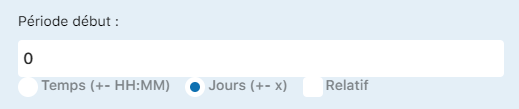
Starting point of the restriction (0 = today, 1 = tomorrow, etc.)
Postpone start if busy

If active, delays the start of the restriction if the court is already occupied
End period

End of the restriction (99 = always active for the season, or a specific number of days)
Applicable for
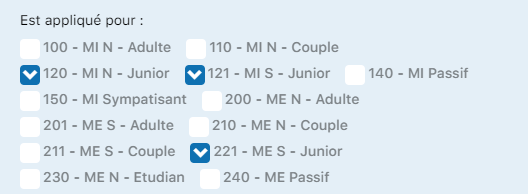
Select the subscription types this restriction applies to (e.g., Junior, Child)
When booking with
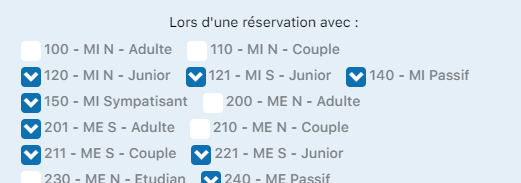
Restricts bookings made with certain partner subscription types
Does not apply to these people

List the members or groups exempt from this restriction (e.g., coaches, administrators)
On all courts
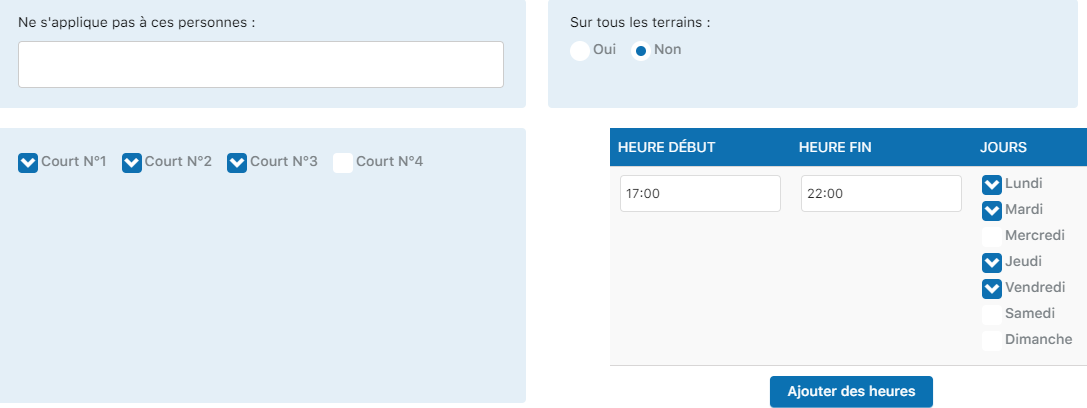
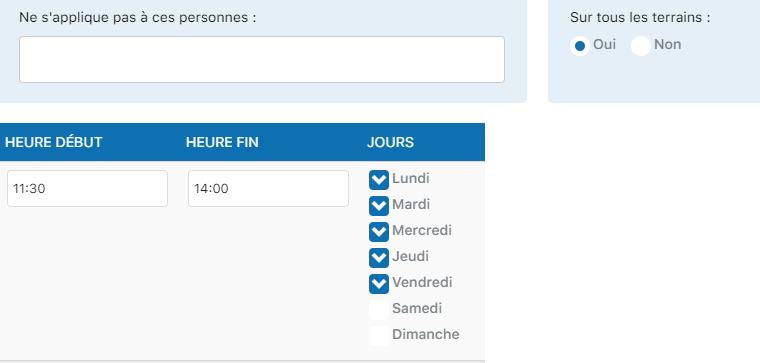
Check to apply to all courts, otherwise select the specific courts concerned
Summary of key settings
| Settings | Purpose |
|---|---|
| Name & Explanation | Clear identification and description of the rule |
| Number of bookings | Limits simultaneous or per-period volume |
| Start/end periods | Determines the time applicability |
| Applicable for | Specifies the affected subscription types |
| Courts | Determines the spatial scope of the rule |
| Exceptions | Exempts certain members or groups |
3 Example 2: Coach with virtual guest
A common use case is allowing coaches to create bookings with a virtual guest for group lessons, while applying certain restrictions:
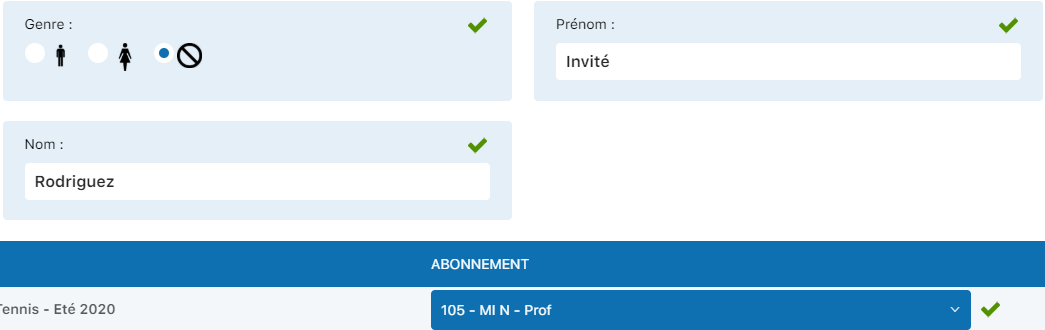
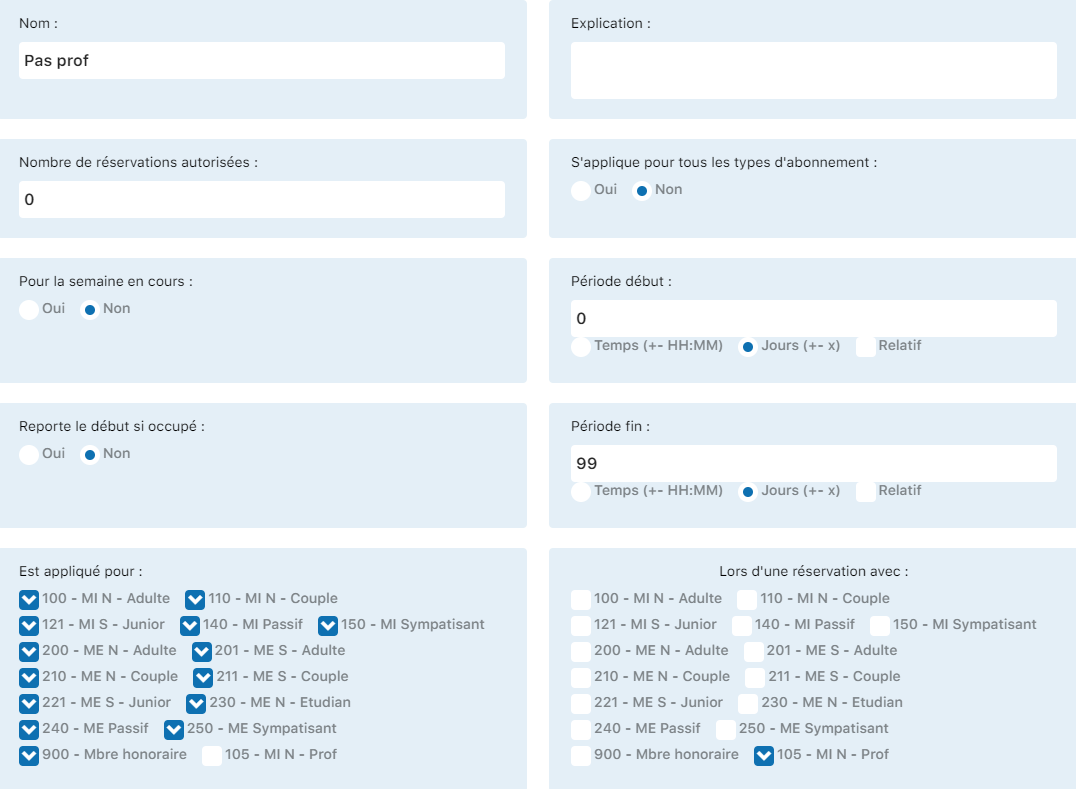
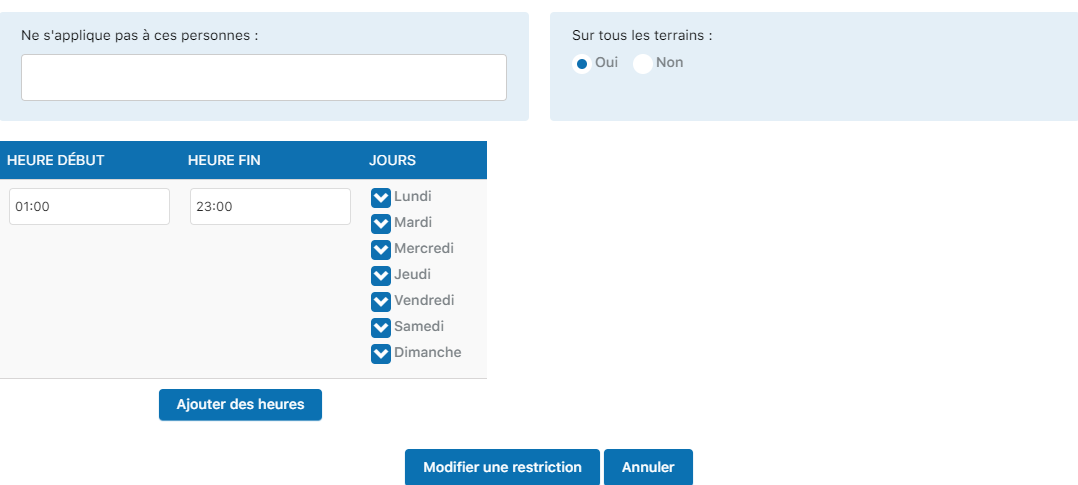
These configurations allow coaches to offer greater flexibility for group lessons while maintaining administrative control.
💡 Tip
Start with simple, specific restrictions. Test them with a small group of users before applying them to the whole club. Complex restrictions can affect the user experience.
⚠️ Important
Regularly check your restrictions to make sure they remain relevant. Outdated restrictions can create confusion and prevent legitimate bookings. Update or delete those that are no longer needed.
Chapter 6: Manage subscriptions
Plugin.ch - User Manual