


Manage items
Assign an item to a member
Assign a billable item to a member or a group of members
Unlike subscriptions, which renew every season, items represent one-time charges assigned to members: licenses, entry fees, key deposits, or lesson registration fees. These items do not renew automatically and must be assigned manually to each member concerned.
Go to the assignment section
Go to the menu INVOICE and select the option "Link an item" to assign an item to a member.
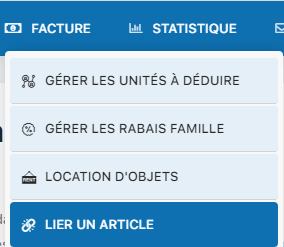
Access to the INVOICE menu to link items
Select the member and the item
Choose the member or group of members you want to assign the item to. Then select the item from the available list.
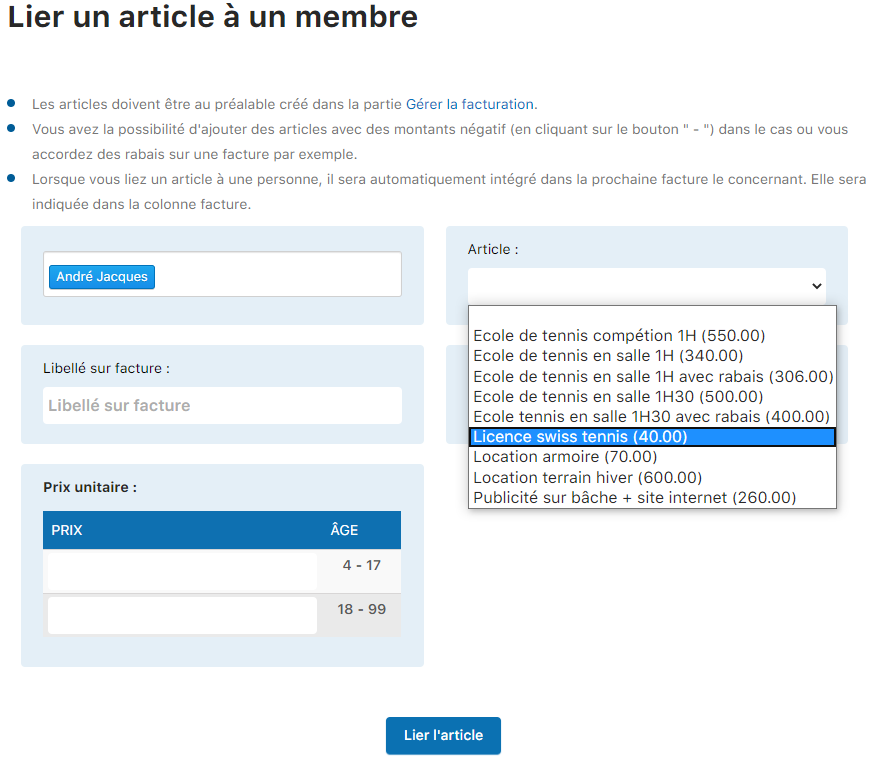
Member and item selection interface
Specify the quantity of this item to assign to the member.
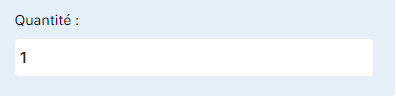
Quantity entry field
Confirm the assignment
The price is displayed automatically based on the member's age and the configured pricing tiers. Click "Link item" to confirm the assignment.
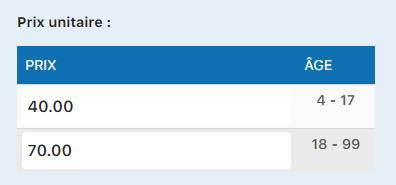
Price calculated according to the pricing conditions
Check the assignment
To check that the item has been correctly assigned, go to MEMBERS → Manage members. Click the member's name, then go to the tab "Linked item" to see all assigned items.

View of all items assigned to a member
Plugin.ch Tutorial — Manage items