


Edit and delete invoices
Manage invoices
Invoices are not set in stone once created. This tutorial shows you how to edit them as needed: adjust amounts, change format, or delete them entirely.
Edit items and amounts
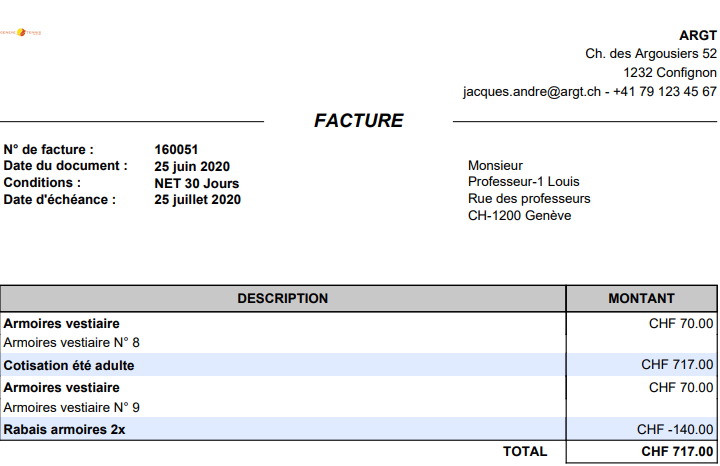
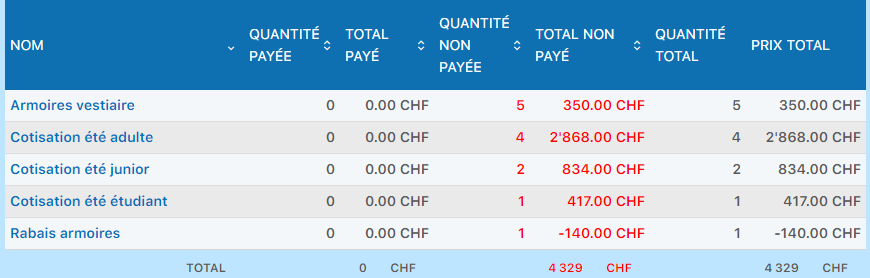
You can add or edit items on an existing invoice. For example: add a discount item for a coach who has free lockers.
A membership fee is generated automatically from the member's subscription. It is not a manual item that can be deleted directly on the invoice.
- Permanent deletion (the person is not registering this year): delete the member's subscription in their profile. The invoice will drop to 0 CHF after refreshing.
- Temporary removal (one-off correction): change the invoiced subscription fee amount to a negative value (e.g. -1). The line will be removed from the current invoice and will return at the next refresh of the invoice group.
Open the invoice for editing
Click the pencil icon to switch to edit mode.
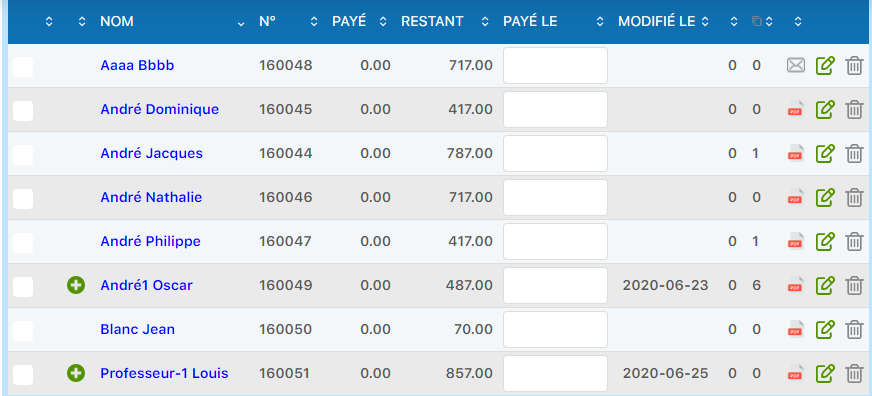

Add or edit an item
Use the "Add item" field to select a new item or a discount. This section concerns manual items (not automatic subscription fees).
Click "Add item"
Confirm the item addition, then click "Edit invoice" to save your changes.
For a temporary correction to a subscription fee, the update happens automatically when you leave the edit field. There is no need to click "Edit invoice" or refresh the page.
Convert paper to email (or vice versa)
You can change an invoice's delivery method after it has been created. For example, switching from paper to email.
Switch to edit mode
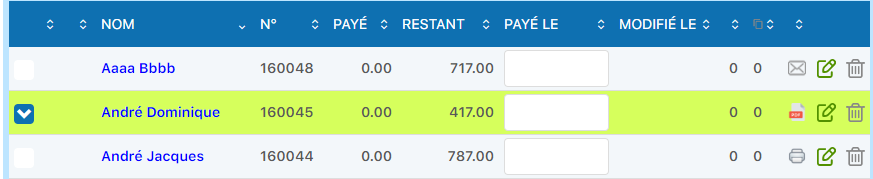
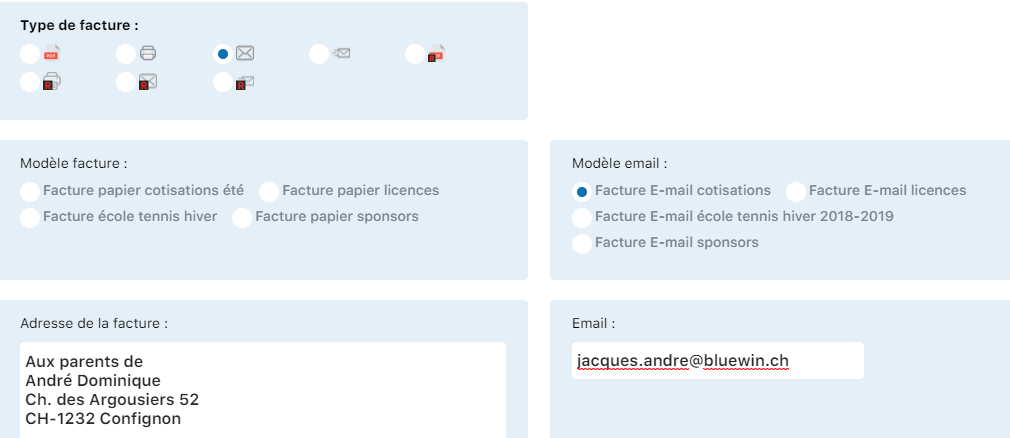
Click the email icon
Select the email template, enter the recipient's email address, then confirm your choice.
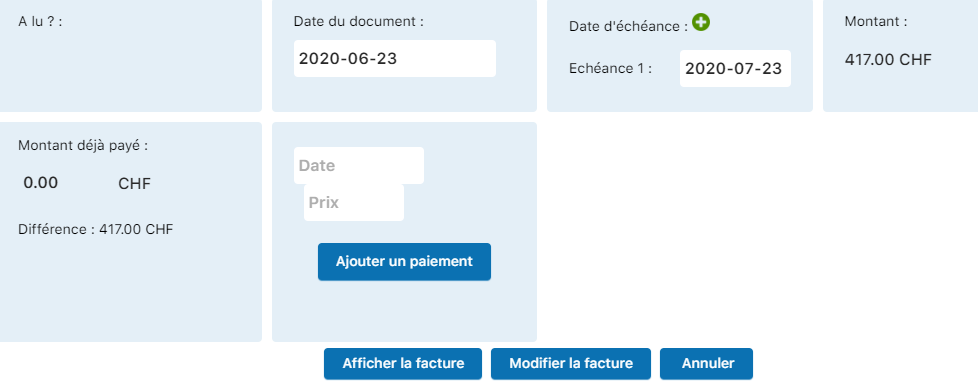
Click "Edit invoice"

Refresh to see the change
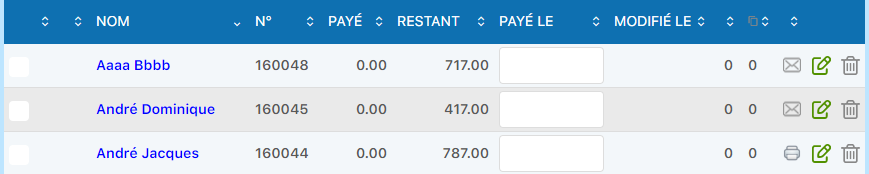
Delete (hide) an invoice
Standard deletion is a "soft delete": the invoice is hidden from normal lists but remains recoverable. This marks it as deleted without losing the data.
Delete a single invoice
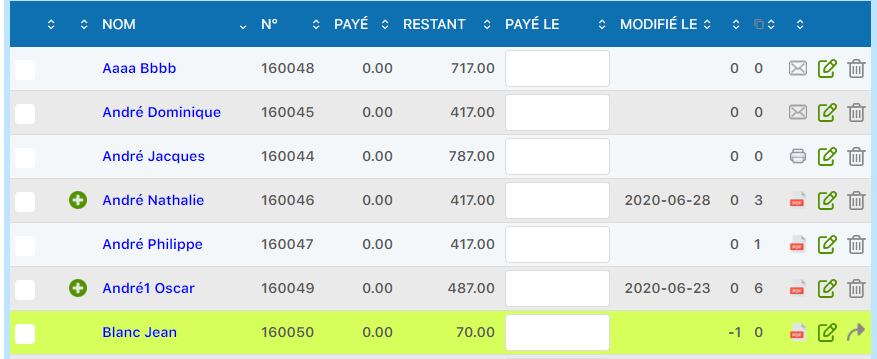
Click the trash icon at the end of the invoice row, or select several invoices and click "Delete".
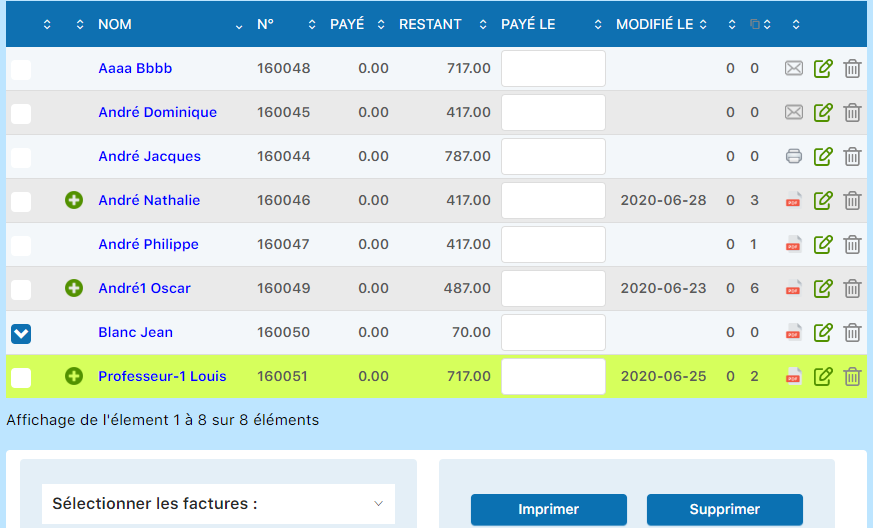

Bulk delete
Check several invoices, then use the "Delete" button to hide them all at once.
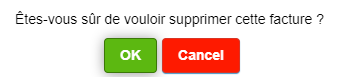

Show/Hide deleted invoices
To see hidden invoices and restore them, click the button "Show/Hide deleted invoices".
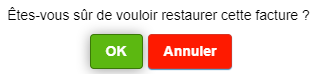
Restore a deleted invoice
Deleted an invoice by mistake? No worries, you can restore it quickly.
Show deleted invoices
Click "Show/Hide deleted invoices" to see hidden invoices, then click the arrow icon to restore.
Permanently delete an invoice
For a permanent (irreversible) deletion, you must delete the member's associated subscription. This is done from the member's subscription management (not from invoice editing).
To delete a subscription fee linked to a subscription, do not open the invoice for editing. The deletion is done in MEMBER / MANAGE SUBSCRIPTIONS.
Go to the member's subscriptions
Open MEMBER / MANAGE SUBSCRIPTIONS then search for the relevant member.
State before deletion
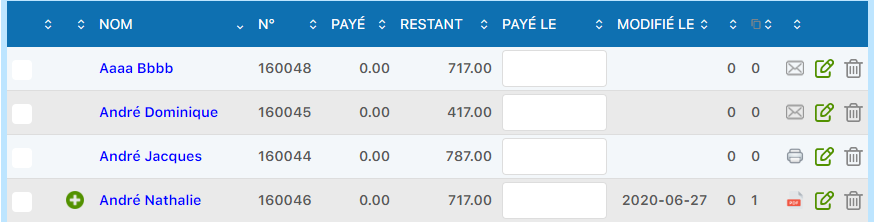
Here is the list before permanent deletion:
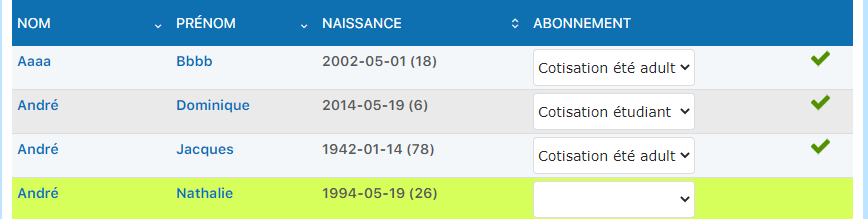
Delete the member's subscription
Go to MEMBER / MANAGE SUBSCRIPTIONS and delete the associated subscription.

Automatic invoice update
After the subscription is deleted, the invoice is updated automatically: it is recalculated if other items remain, or deleted if it no longer contains anything.
Expected result
If the subscription fee was the only item, the invoice disappears (or drops to 0 depending on configuration). If other lines remain, the invoice is kept with its new total.

If you restore the subscription
If you restore the subscription later, the invoice will be recreated with its original dates intact.
Most of the time, the "soft delete" (simple deletion) is enough. Reserve permanent deletion for cases where the subscription itself must disappear from the system.
Plugin.ch Tutorial — Manage invoices