


Manage seasons
Edit or delete a season
Adjust the dates or delete an existing season
⚠️ Important: This tutorial is about seasons. If your goal is to remove an invoice fee, do not act on the season: the fee depends on the member's subscription. For a permanent removal, delete the subscription; for a temporary correction, apply a negative amount (e.g., -1) to the invoiced fee.
Go to season management
Open the management interface to edit or delete a season.
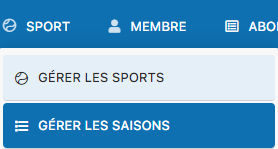
Navigation: Sport → Manage seasons
Edit a season
Edit the start and end dates of an existing season.
In the season list, click the pencil icon to edit the settings.

Edit the start and end dates as needed.

Click “Save” or “Confirm” to apply the changes.
💡 Tip: Check that the new dates do not overlap with other seasons before confirming the changes.
Delete a season
Delete a season you no longer use.
In the same season list, click the trash icon to delete the season.
You will be asked to confirm. Confirm the deletion to finalize the action.
⚠️ Warning: Deleting a season deletes all associated data (bookings, subscriptions, invoices). This action is irreversible. Make sure before proceeding.
💡 Tip: If you need to keep the data associated with a season, consider archiving it manually instead, or not deleting it until the end of the accounting year.