


Processing via bank files
Category: Process payments
Plugin.ch lets you import and automatically process payment files received from your bank. Two formats are supported: files V11 (legacy format, deprecated since the end of 2021) and files XML in ISO 20022 camt054 format (modern format). This tutorial guides you through the structure of these files and how to import them into the system.
A Structure of the reference number
The reference number used for bank payments is a key element that allows Plugin.ch to reliably identify which invoice is being paid. This number contains 27 characters structured as follows:
| Component | Length | Description |
|---|---|---|
| Subscriber number | 9 characters | Unique identifier of the club/organization |
| Reserved | 2 characters | Reserved space, generally made up of zeros |
| Member number | 8 characters | Identifier of the member who received the invoice |
| Invoice number | 7 characters | Unique invoice number in Plugin.ch |
| Control character | 1 character | Checksum for validating the number |
💡 Tip
The reference number allows Plugin.ch to automatically match received payments to the correct invoice. This eliminates manual errors and considerably speeds up the reconciliation process.
B V11 format (legacy format)
The V11 format was widely used for exchanging banking data. Each payment line contained exactly 100 characters, and an 87-character control line accompanied each file.
⚠️ Note
V11 files are no longer accepted since the end of 2021. If you still have files in this format, please ask your bank for an export in XML format (ISO 20022 camt054).
C XML ISO 20022 camt054 format
Recommended tools for viewing XML files
To examine the detailed content of XML files, we recommend using specialized editors that make it easier to navigate the XML hierarchy:
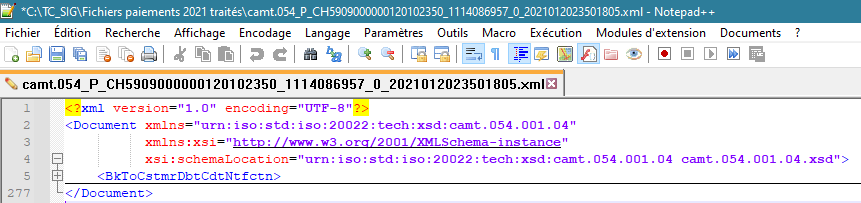
Notepad++ with XML syntax highlighting
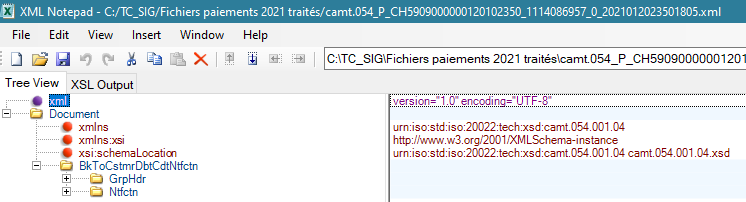
XML Notepad with tree view
General document structure
A camt054 XML file starts with a declaration and a “Document” root element that encapsulates all the banking data:

Header group (GrpHdr)
The GrpHdr section contains the message metadata, notably the file's unique identifier (MsgId) and the creation date/time (CreDtTm):

Notification group (Ntfctn)
The Ntfctn section groups account information and bank transactions. It contains the account and transaction details:


Entry details (Entry)
Each entry contains the account IBAN, the total amount, and the transaction type (generally CRDT for credit):
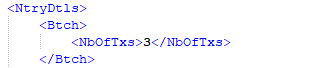
Number of transactions
Plugin.ch checks the indicated number of transactions to make sure all transactions were imported correctly:

Details of each transaction
Each transaction includes the amount, the debtor's information (who is paying), and the debtor's bank:
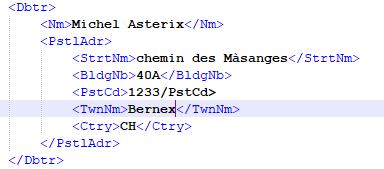

D Process a payment file
Step 1: Access payment management
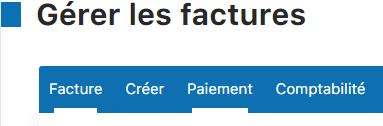
From the menu, go to INVOICE then MANAGE INVOICES. Then click the tab or button “Payment”.
Step 2: Select the file
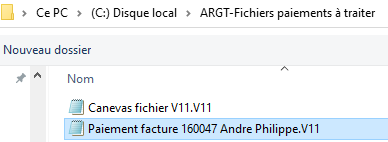
Click the “Choose a file” to browse your computer and select the XML file received from your bank.

Step 3: Confirm the selection
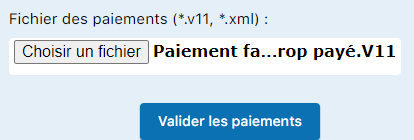
Once the file is chosen, it is displayed in the interface. Check that it is the correct file.
Step 4: Validate the payments
Click the “Validate payments” to start the import. Plugin.ch will process all payments in the file and automatically match them to the corresponding invoices.
Step 5: Review the PDF report
A detailed PDF report is generated. It lists all processed payments, amounts, dates, and the status of each transaction. Keep this report as proof.


Step 6: Archive the file
Once successfully processed, move the XML file to a “Processed files” folder in your personal folders. This avoids accidental duplicate processing and keeps your files organized.
E Review a processed file
Access to file history
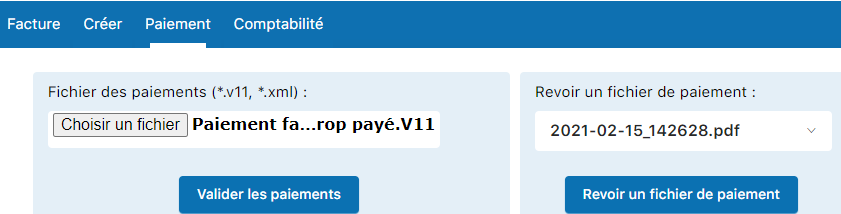
In the “Review a payment file” area, you can view the complete history of bank files already processed by Plugin.ch.
Select a file from the list
A drop-down menu or list displays all previously imported payment files. Select the file you want to review.
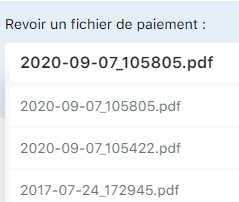
View the file details
Click the “Review a payment file” to display the detailed report with all payments included in this file.

F Managing duplicate processed files
Duplicate payment detection
If you accidentally import the same bank file twice, Plugin.ch automatically detects this. The payments from the second processing are displayed in BLUE in the report.

Protection against duplicate validation
Payments displayed in blue are not processed by Plugin.ch. Only payments in black (from the first processing) are taken into account. No duplicate credit is recorded on invoices.
⚠️ Note: Duplicate payments via e-banking
If a member has unintentionally made two payments for the same invoice via their e-banking, the second payment will be displayed in blue in Plugin.ch and will not be taken into account. However, the amount will still have been debited from the member's account. Check your bank account to identify these situations and contact the member for a refund if necessary.

💡 Tip
After each bank file import, review the generated PDF report. Payments in blue indicate an anomaly. Note these references to carry out the necessary checks with your bank.
Plugin.ch Tutorial — Process payments