


Create a new member
Add a member to your club and assign them their subscription
Manage members
Access the add form
In the member list, click the button ADD A MEMBER located in the left-hand panel. A blank form appears for you to enter the new member's information.
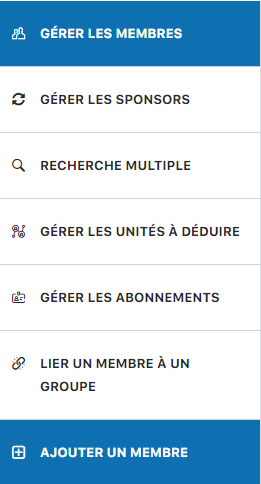
"Add a member" button in the side panel
Fill in the add form
Fill in the form fields with the new member's information. The available fields depend on your club's configuration:
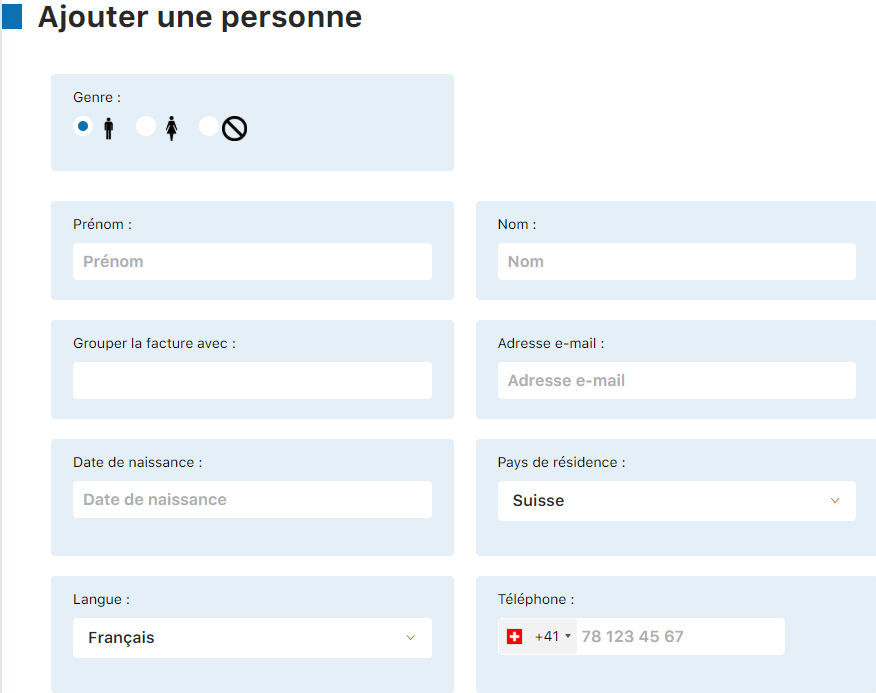
First part of the form
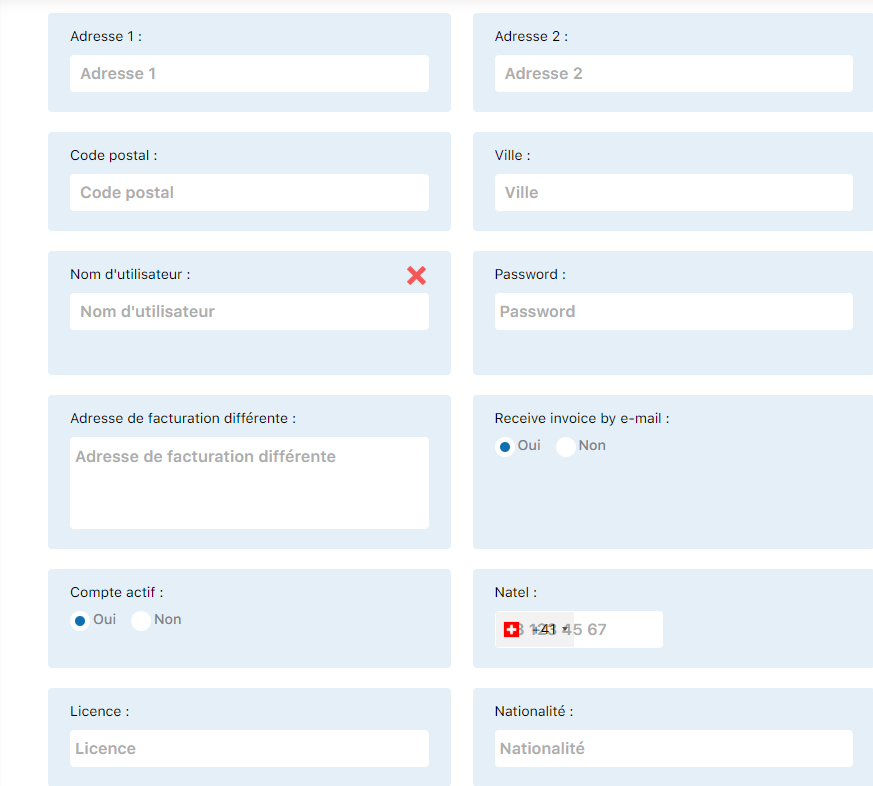
Second part of the form
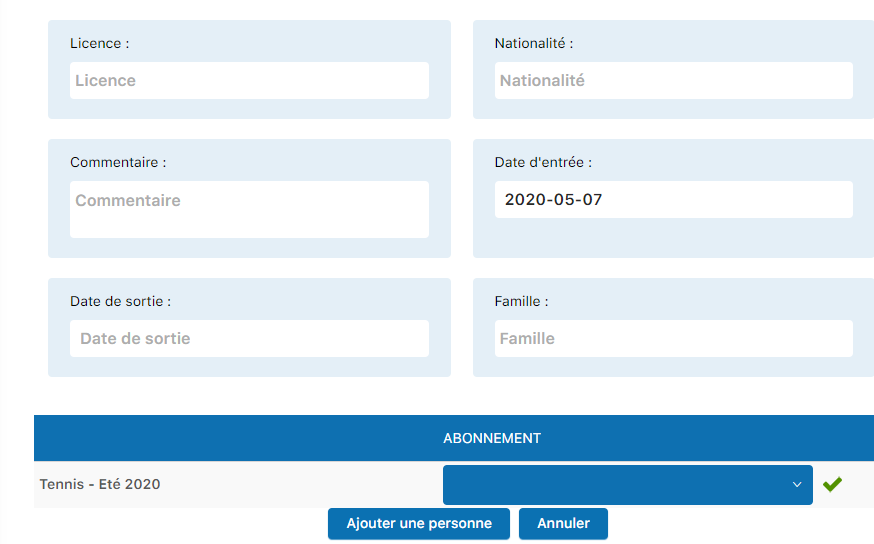
Third part of the form
Assign the subscription
Before saving, it is important to assign a subscription to the new member. Click the arrow in the field Subscription to open the list of available subscriptions and select one.
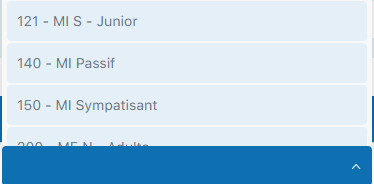
Click the arrow to select a subscription
Save the new member
Once all the fields are filled in and the subscription assigned, click the button Add a person to create the new member. A confirmation message will appear. You can also click Cancel to clear all the fields and start over.
💡 Helpful tips
Group invoice with: If the new member is part of a family or group, you can use the "Group invoice with" field to link them to the family's responsible member. This will allow grouped invoicing for all family members.
"Virtual" gender: Use the "Virtual" gender if you are creating a minimal profile (for example, for a guest client or a person for whom you only have the name). A virtual profile only requires a name and can have very little data.
⚠️ Note: The set of available fields depends on your club's configuration. Some clubs may have more or fewer fields to fill in depending on their specific needs.
Plugin.ch Manual | Chapter 8: Manage members