


Manage recurrence authorizations
Allow certain members to make recurring bookings
Some members of your club, particularly instructors or administrative staff, need to create recurring bookings (e.g., group lessons, regular training sessions). Recurrence authorization management lets you define who can make this type of booking and under what settings.
1 Go to the recurrence authorizations menu
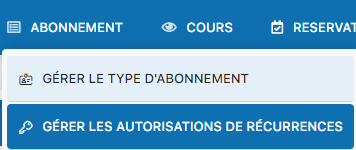
From the dashboard, go to SUBSCRIPTION → Manage recurrence authorizations. There you will find the list of all existing recurrence authorizations.
2 Create a new recurrence authorization
Click the “Add” or “Create” button to add a new authorization. The form appears with several settings to configure.
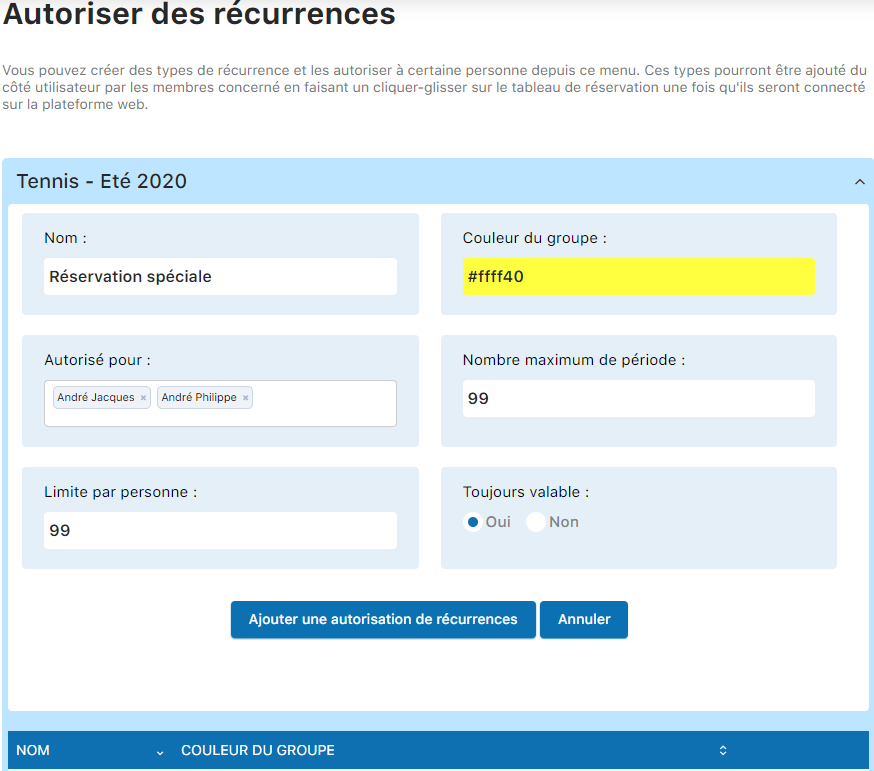

Here are the key fields to fill in:
| Field | Description |
|---|---|
| Name | Name of the recurrence authorization (e.g., Group lessons, Regular training) |
| Group color | Display color in the calendar to visually identify this type of recurrence |
| Allow for | Enter the first 3 letters of the subscription type authorized to create this recurrence |
| Maximum number of periods | Maximum number of periods (time slots) a recurrence can occupy |
| Limit per person | Maximum number of recurrences the same person can create |
| Always valid | Determines whether this authorization stays active continuously or only for a given period |
3 Edit an existing authorization
To edit an authorization, click the pencil icon (edit) next to it.

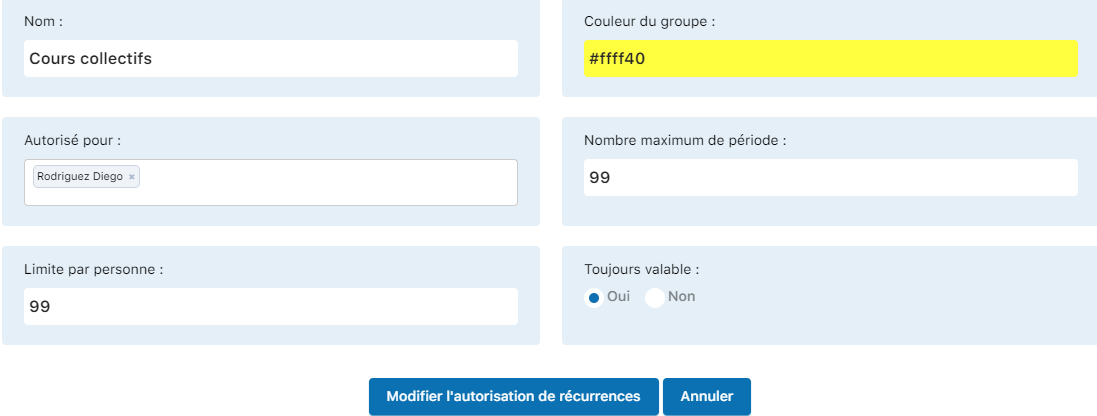
The edit form appears, letting you change the settings and add or remove authorized members.
4 Delete an authorization
Click the trash icon to delete an authorization. You will be asked to confirm before it is permanently deleted.
5 Use an authorized recurrence
An authorized member can create a recurrence by logging into their account and using the booking interface.
Step 1: Click and drag on the booking board to select the desired slot.
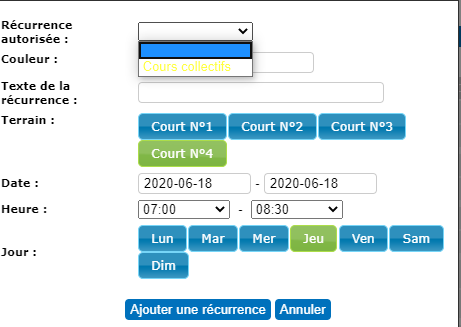
Step 2: Select “Recurrence allowed” from the menu that appears.
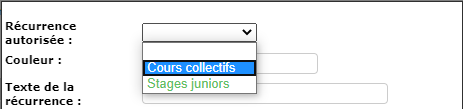
Step 3: Choose the recurrence type (e.g., “Group lessons”) from the available permissions.
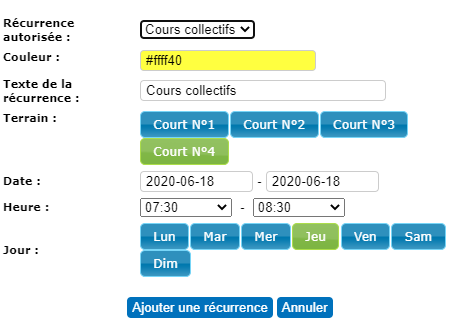
Step 4: Complete the additional information (courts, dates, days of the week) and click “Add a recurrence” to confirm.
💡 Tip
Instead of deleting an outdated permission, you can disable it by changing the “Always valid” setting to “No”. This keeps the history while preventing any further use.
⚠️ Important
A recurrence permission must be assigned to at least one subscription type and at least one member to be functional. Check the assignments before activating it.
Chapter 6: Manage subscriptions
Plugin.ch - User Manual