


Process a manual payment
Category: Process payments
Member payments can be processed in two distinct ways: in cash directly in Plugin.ch or via bank files (V11 or XML). This tutorial guides you through processing manual payments, whether you receive the money in person or through other non-digital channels.
A Record a full payment
Step 1: Access invoice management
From the main menu, select INVOICE then MANAGE INVOICES.

Step 2: Locate the invoice
Browse the invoice list to find the one you want to mark as paid.
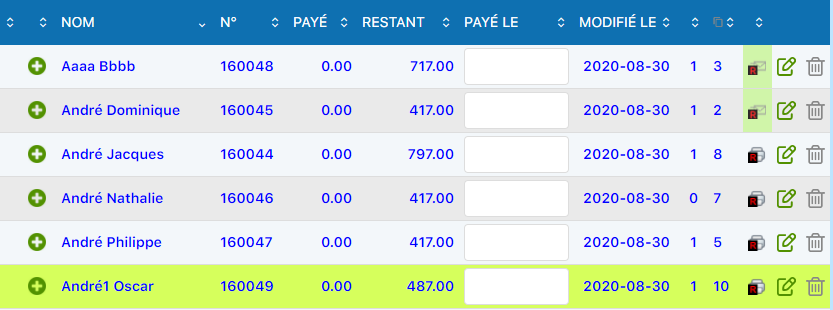
Step 3: Fill in the payment date field
Click the field “Paid on” to enter the date the payment was received.
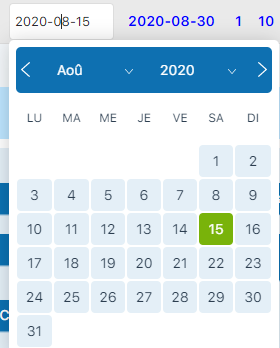
Step 4: Select the date
The calendar opens to let you choose the exact payment date.

Step 5: Check the update
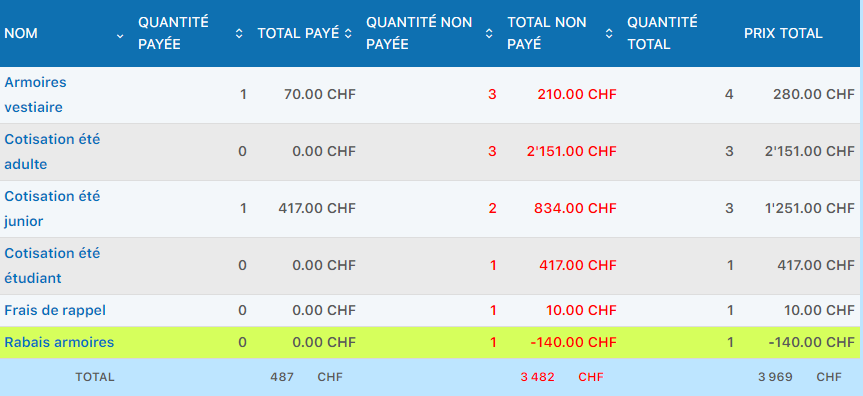
The invoice is automatically updated. The total amount is now displayed in the summary with the updated payment status.
B Record a partial payment
Use case: partial cash payment
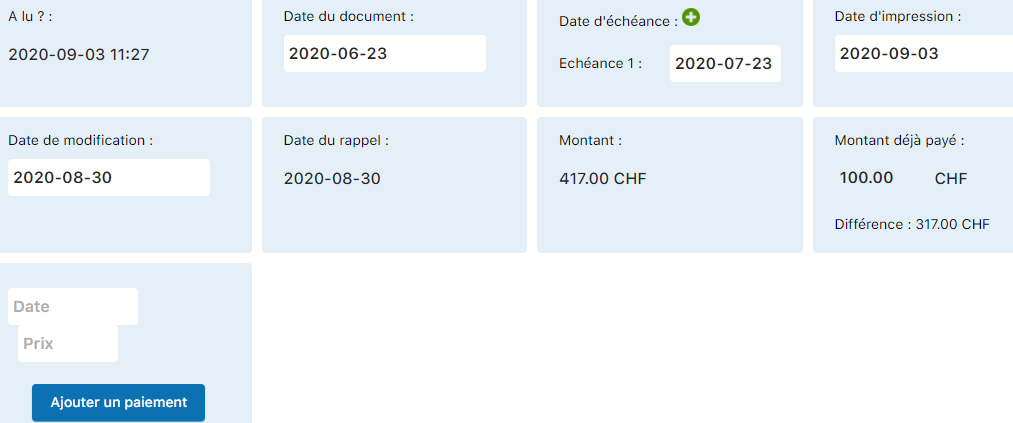
Suppose you have an invoice 160045 for 417 CHF, but the member only pays 100 CHF in cash today. Plugin.ch lets you record this partial payment and track the remaining balance.
Step 1: Access editing
Click the pencil (edit icon) next to the invoice.

Step 2: Access the payment area
The edit page is displayed with the invoice's full details.
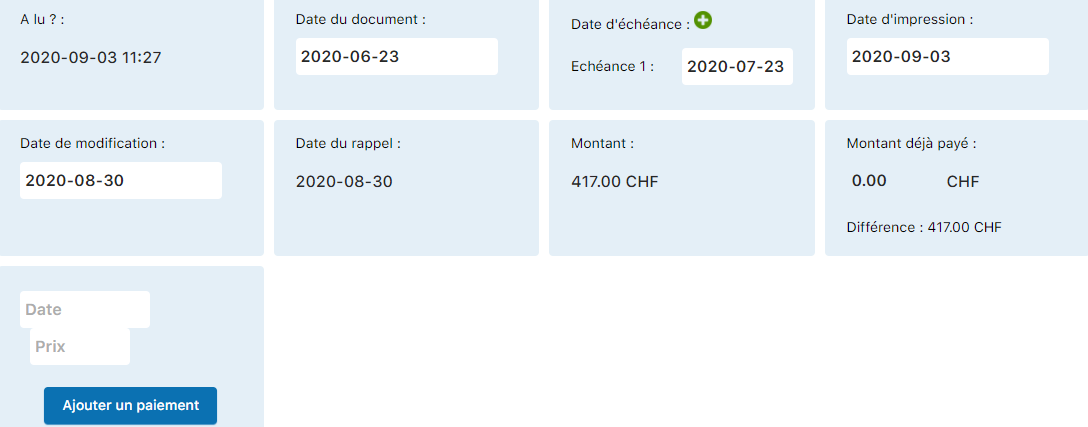
Step 3: Enter the payment information
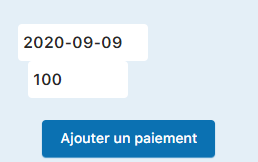
In the “Add a payment”, enter the payment date and the amount received (100 CHF in our example).
Step 4: Confirm the payment addition
Click the “Add a payment” to record this partial transaction.
Step 5: Check the amount paid
The field “Amount already paid” is automatically updated. It now shows the 100 CHF you just recorded, with the remaining balance of 317 CHF.

Step 6: View the printed invoice
If you print the invoice, it will clearly show the partial payment recorded and the remaining balance due. This makes it easier to follow up with reminders later if needed.

💡 Tip
After adding the payment, it is not necessary to click “Edit invoice”. Plugin.ch automatically records the partial payment in its database. You can now close the page or process another invoice.
Plugin.ch Tutorial — Process payments